What’s New in Claude Code: Desktop Redesign, Routines, Opus 4.7 and Claude Design (Week Ending 19 April 2026)
Table of Contents
What Is Claude Code, and Why Should Marketers and Managers Care?
What’s new in Claude Code this week: the latest launches and features (week ending 19 April 2026)
The Desktop Redesign: Three Modes, One App
Routines: Your Laptop Can Be Off and the Work Still Happens
Opus 4.7: The Engine Just Got Smarter
Claude Design: Slides, Mockups and Pitch Decks Without the Design Software
Bonus Tip: Managing Multiple Chat Tabs and Projects
What Is Claude Code, and Why Should Marketers and Managers Care?
This week I am celebrating three months of using Claude Code, and for me it has been revolutionary. It is the kind of shift that only comes along once or twice in a career.
It is the same feeling I had when I first started using Microsoft Office, when I first set up a WordPress CMS, and when I first opened ChatGPT. Each one of those moments completely changed the way I worked and gave me a set of advanced features I simply did not have before. Claude Code belongs firmly on that list.
I had been using Claude Projects for about a year before that, and Projects is itself a significant step up from basic chat, but Claude Code operates on a different level entirely.
If you have not come across it before, Claude Code is a tool made by Anthropic (the company behind Claude) that goes beyond chat. Instead of just answering questions, it can read your files, write documents, build reports, pull data from Google Ads or Analytics, create presentations, and automate repetitive tasks. It works directly on your computer, with your files, in your brand voice.
And here is the irony of the name. It is called Claude Code, which makes it sound like a developer tool, yet you do not need to write a single line of code to use it.
I cannot code, but in the last three months I have used Claude Code to produce over 50 client audit reports, build three client portals, create dashboards and strategy documents, write two books (one finished, one halfway through), and run weekly content and data pipelines across multiple clients. All in plain English, without touching a line of code myself.
Why I am writing this weekly round-up
The pace of change in Claude Code is extraordinary. Anthropic is shipping new features almost every single week, and each release makes it easier, faster and more useful for non-technical teams. Most people have not yet caught up with how powerful it has become.
That is exactly why I am writing a weekly round-up. My focus is on educating marketers and managers on what Claude Code can really do for them, and being the expert voice you can turn to for the latest launches, the newest features, and, most importantly, how to actually use them in day-to-day work.
If you want to go further than this week’s round-up, at the end of this post you will find a link to download my free Claude Code Implementation Guide, a complete step-by-step manual on setting up Claude Code, building your first skills, and rolling it out to your team. You can also join us at Thursday AI Club, our fortnightly live session (2-5pm BST): a 1-hour drop-in Q&A followed by your choice of a 2-hour hands-on workshop or an advanced AMA / show-and-tell track.
How to access Claude Code
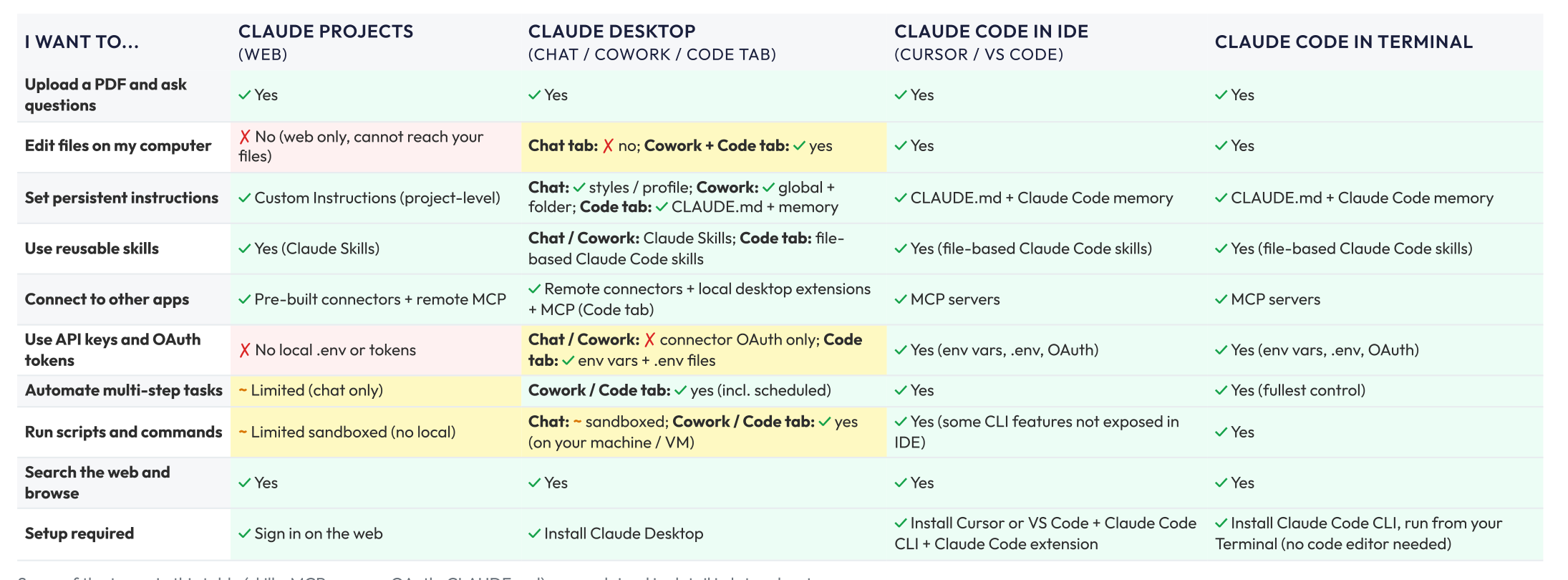
There are four ways to access Claude’s agentic tools, and you can pick whichever one fits your role.
- Claude Projects (on claude.ai): the browser option. Upload documents, add instructions, get structured output. No install required.
- Claude Desktop: the app you install on your laptop. Since the April redesign, this is the default for most marketing and management teams.
- Claude Code in an IDE: for power users who want hooks, automation and the Agent SDK layered on top.
- Claude Code in the Terminal: the fully automated version, mainly used by developers who are comfortable working in the command line / terminal.
Most people start with Projects, move to Desktop when they want AI working directly on their files, and only graduate to an IDE or the Terminal if they need the extras.
Need more detail on Claude Projects, skills, IDEs or the command line? These terms explained (click to expand)
Claude Projects. A step up from basic chat, but not the full Claude Code. You can upload files, write instructions, save reusable skills at the account level, and Claude remembers every conversation inside that project. No direct access to your local files or automations.
Skill. A saved recipe Claude follows, like “write a blog post in Ann’s style” or “format a monthly PPC report”. Build it once, reuse across every project.
IDE (Integrated Development Environment). The software developers use to write and edit code. Cursor, VS Code and Google Antigravity are all IDEs.
Command line / Terminal. The plain text window developers type instructions into, instead of clicking buttons. Basic-looking but powerful because you can script and automate almost anything.
The table below shows where each option fits across ten common tasks.
What’s new in Claude Code this week: the latest launches and features (week ending 19 April 2026)
This week’s update is a big one. In the space of four days, Anthropic has shipped four major updates (plus we have added a small bonus feature of our own), and taken together they mark the biggest step change in Claude Code since it launched. For the first time, this is a tool marketers and managers can pick up and use without touching a code editor, a terminal, or anything that feels technical.
Here is a quick summary of the five features covered in this blog. Scroll down, or click any heading below, to get the full detail on each one.
1. The Desktop redesign (14 April)
Until now, the recommended way to use Claude Code was inside an IDE like Cursor, which felt like being told to learn plumbing before you could use the shower. The redesign turns Claude Desktop into something you use like Word, with no code editor required. This is the most significant of the four updates because it changes who can realistically use Claude Code day to day.
2. Routines (14 April)
Until now, if you wanted Claude to do something on a schedule, like pull a daily report or monitor competitor prices, you had to leave your laptop running overnight. Routines move that work to Anthropic’s servers so your laptop can be off and the work still happens.
3. Opus 4.7 (16 April)
This is an upgrade to the AI model itself. It follows instructions more precisely, reads images at over three times higher resolution, and checks its own work on long tasks. Same price, better results.
4. Claude Design (17 April)
A new visual workspace at claude.ai/design that lets you brief Claude in plain English to create pitch decks, landing page mockups, social media assets, and interactive prototypes. If you have ever needed a rough visual for a proposal or a quick mockup for a client conversation, this is a meaningful time-saver.
5. Bonus tip: Managing multiple chat tabs or projects
The Desktop redesign lets you run multiple parallel projects in one window (something Cursor users already had), and you can now rename each tab. Small changes, but genuinely useful for tracking which chat is which, particularly during handovers when the context window fills up.
Together, these are the biggest step forward for marketers and managers since Claude Code launched. Here is what each update does, why it matters for your team, and how to get started.
The Desktop Redesign: Three Modes, One App
What has changed?
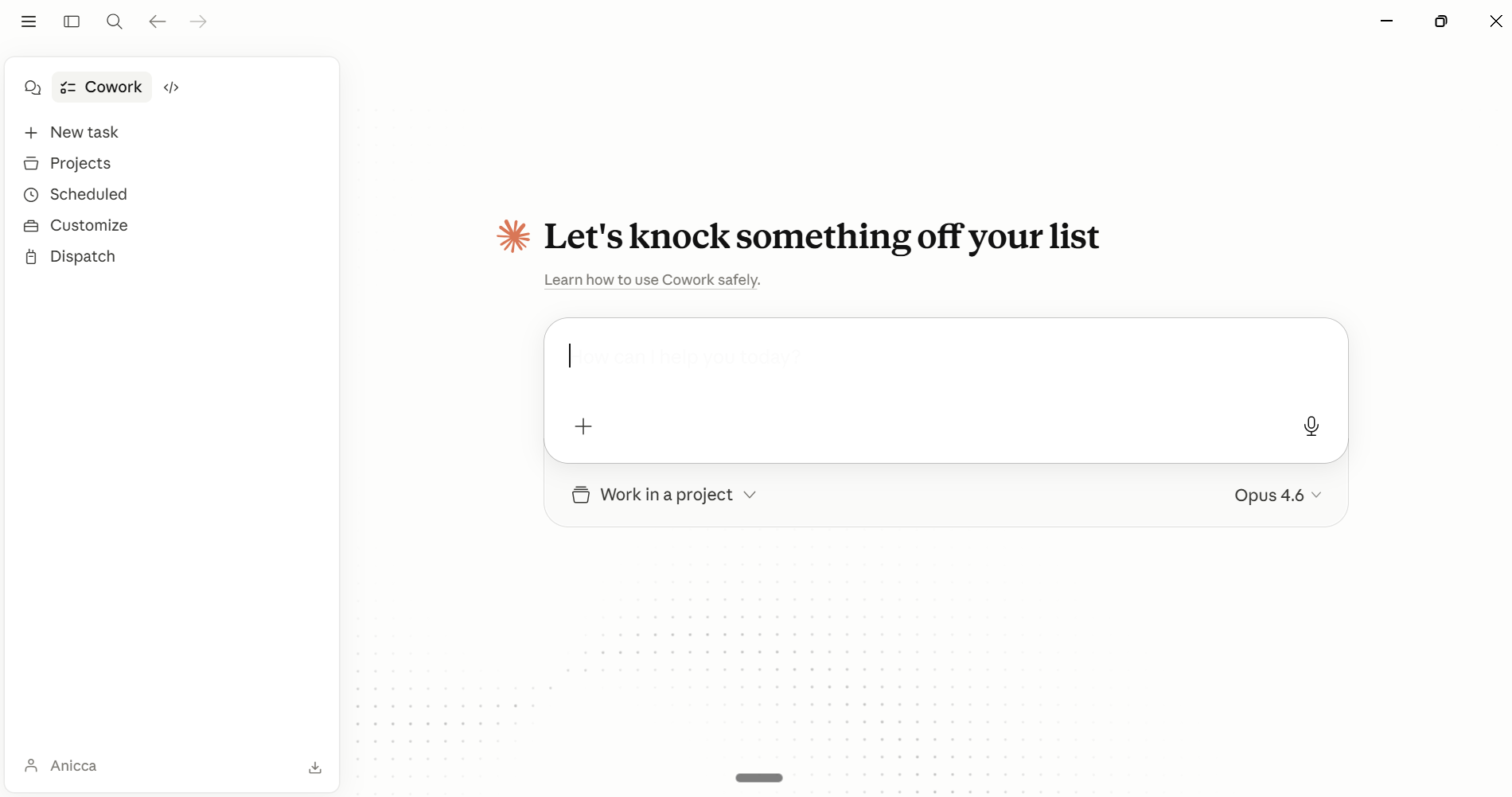
If you opened Claude Desktop this week and thought it looked different, you are not imagining it. Anthropic has rebuilt the app around three distinct modes, and you switch between them using three small icons in the top-left corner of the sidebar. Here is what each mode does.
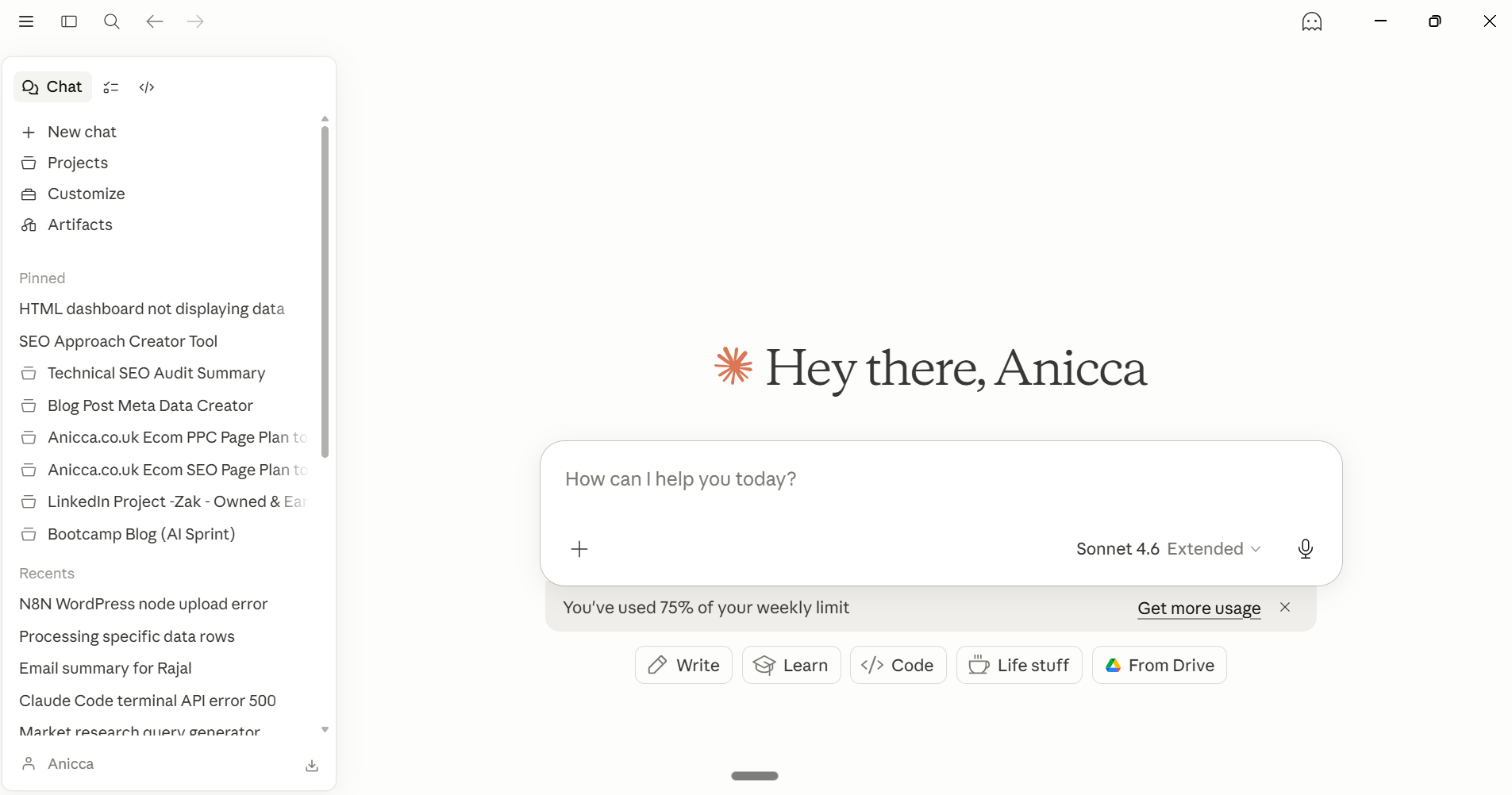
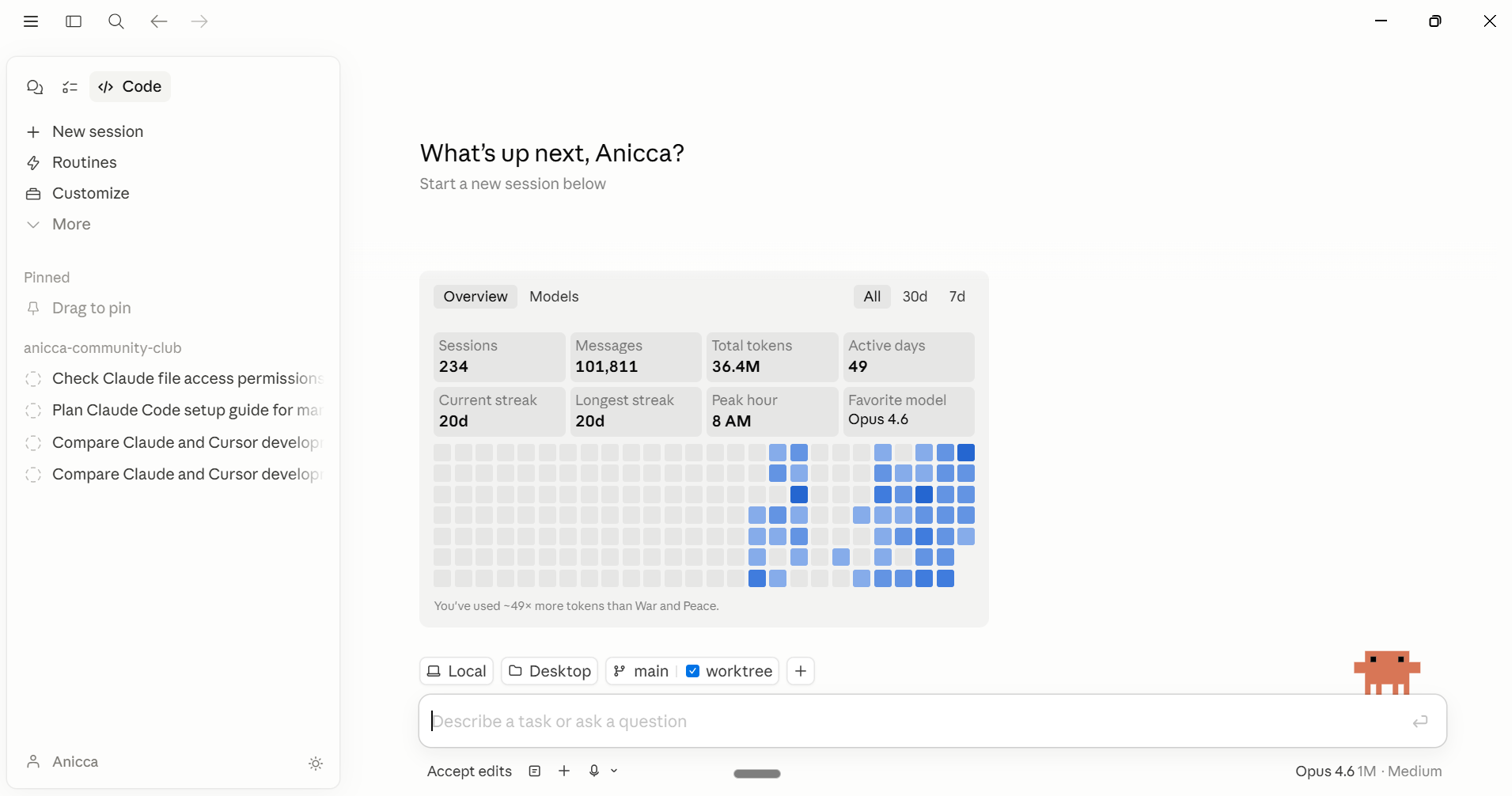
Chat is the standard Claude conversation you already know. You type a question, Claude answers. It has shortcuts at the bottom for writing, learning, and coding. It runs on Sonnet 4.6, which is the faster model. Think of this as your quick-questions mode, like asking a knowledgeable colleague something over their desk.
Cowork is the agentic mode, and this is where it gets interesting for teams. Cowork can read and write files on your computer, run tasks autonomously, and has voice input built in so you can talk to it instead of typing. It also has scheduling (for Routines) and Dispatch, which lets you hand Claude a task and walk away while it works (I covered both Dispatch and Channels in more detail in this blog from two weeks ago). It runs on Opus, the most capable model (now version 4.7 – more on that below). Think of this as your working mode, like briefing a junior team member on a task and letting them get on with it.
Code is the full Claude Code environment wrapped inside the Desktop app. Developers sometimes call this a “wrapper” because the Desktop app wraps around the Claude Code engine, just like Cursor wraps around it in a different way. Code mode gives you sessions, Routines, worktrees (separate working copies of your project so you can experiment without breaking anything), and pinned projects. It also runs on Opus 4.7. This is the power-user mode. Most marketing and management staff will rarely need it, but developers and technical leads will live here.
Why does this matter?
Before this update, if you wanted to run multiple Claude conversations at the same time, you had to install Cursor and run Claude Code as an extension (a plug-in) inside it. That was the main reason we were training teams on Cursor rather than Desktop.
The redesign removes that reason. Desktop now has parallel sessions in the sidebar. You can have one session drafting ad copy for one client, another processing meeting notes, and a third building a report, all in the same window. The side-chat shortcut (Ctrl+; on Windows) lets you ask a quick question without interrupting whatever Claude is working on.
More importantly, Desktop feels like a normal application. You open it like Word. You point it at a folder. You start typing or talking. There is no extension to install, no light theme to configure, no risk of accidentally clicking Cursor’s own AI tab instead of Claude’s. For someone who does not think of themselves as technical, that is the difference between “I can use this” and “I need IT to set this up for me.”
Routines: Your Laptop Can Be Off and the Work Still Happens
What are Routines?
Think of Routines as scheduled tasks that run on Anthropic’s computers instead of yours. You tell Claude what to do, how often to do it, and it runs in the cloud whether your laptop is on or not. If you have ever used Windows Task Scheduler, or asked IT to “set up a cron job” (that is just the technical term for a scheduled command that runs automatically on a server), Routines do the same thing but without needing your own machine. You may hear developers refer to this as “cloud-native” – it simply means the work runs on someone else’s servers rather than your laptop.
You set up a Routine by giving it three things:
- A trigger – when should it run? This can be a schedule (hourly, daily, weekly), a webhook (a webhook is just a signal sent automatically from one system to another, like a notification that a form has been submitted or a payment has gone through), or a GitHub event (GitHub is where developers store and share code – think of it as OneDrive with version history – and a GitHub event means something changed there)
- A prompt – what should Claude do when it runs? This is the same kind of instruction you would give in a normal conversation
- The tools it needs – which connections and permissions does it require?
Once set up, the Routine runs on its own. No laptop required. No terminal window left open. No “did the overnight job run?” messages in the morning.
What can you actually use Routines for?
Here are the workflows we are already thinking about moving from our local Task Scheduler to Routines:
- Daily reporting – pull Google Ads data, format it, send a summary email to the team
- Weekly content pipeline – scrape news articles, categorise them, draft a blog post, upload to WordPress as a draft
- Price monitoring – check competitor prices against your client’s prices, flag anything that has changed
- Monthly exports – pull GA4 data, generate a formatted report, save it to a shared folder
What Routines cannot do (yet)
There are two important limitations to understand.
No local files. Every time a Routine runs, it starts fresh on Anthropic’s servers. It cannot see the files on your laptop. So if your workflow currently reads a spreadsheet from your desktop or saves a report to a local folder, you would need to rethink it. The data needs to come from somewhere cloud-accessible, like an API, a Google Sheet, or a database.
Hourly minimum. The shortest interval is one hour. If you need something to run every five minutes (say, monitoring a live feed), you still need to use the older /loop command inside an open Claude Code session, which does require your laptop to be on.
Opus 4.7: The Engine Just Got Smarter
Two days after the Desktop redesign and Routines landed, Anthropic upgraded the engine that powers them. Claude Opus 4.7 replaced Opus 4.6 on 16 April.
If you are not sure what “Opus” means in this context, think of it as the model tier. Anthropic makes three tiers of Claude: Haiku (fast and cheap), Sonnet (balanced), and Opus (the most capable). When you use Chat mode in Claude Desktop, you are running on Sonnet. When you use Cowork or Code mode, you are running on Opus. The 4.7 is just the version number, like going from iPhone 15 to iPhone 16.
What actually changed?
The short version: Opus 4.7 is better at following instructions precisely, better at reading images, and more reliable on long complex tasks. Here is what that means in practice.
It follows your instructions more literally. If you have written a set of brand voice rules, formatting requirements, or reporting templates for Claude to follow, 4.7 sticks to them more faithfully than 4.6 did. Anthropic explicitly flagged this change: the model now takes your wording at face value rather than guessing what you probably meant. That is good news if your instructions are clear, but it also means vague prompts may need tightening.
It reads images at 3.3 times higher resolution. The maximum image resolution jumped from 1.15 megapixels to 3.75 megapixels. If you ask Claude to read a screenshot, analyse a competitor’s website, review a PDF, or check a design mockup, it can now see much more detail. For anyone building reports that involve screenshots or reviewing creative work, this is a meaningful improvement.
It checks its own work on long tasks. Opus 4.7 introduced self-verification, which means that on complex multi-step work (building a long report, running a data pipeline with multiple stages, processing a batch of files), the model pauses to verify its output before moving on. Fewer silent mistakes on the kind of tasks that matter most.
It hallucinates less. Anthropic measured “large reductions” in important omissions and moderate improvements in factuality. In plain English: it is less likely to make things up, and less likely to leave out something important. For anyone using Claude to produce client-facing documents, that is reassuring.
What does this cost?
Nothing extra. Opus 4.7 is the same price as 4.6. If you are on a Pro, Max, Team, or Enterprise plan, you already have it. The upgrade happened automatically – there is nothing to install or switch on.
Claude Design: Slides, Mockups and Pitch Decks Without the Design Software
The day after Opus 4.7 landed, Anthropic launched Claude Design (17 April), a new visual workspace that does for slides, mockups and pitch decks what Claude Code does for documents and data. You describe what you want in plain English, Claude builds it, and you iterate by asking for changes. No design software to learn, no templates to fight with.
What is Claude Design?
Claude Design is a standalone workspace at claude.ai/design. You open it in a browser, describe the visual you want (or paste in a rough sketch or reference), and Claude produces a working design you can then refine. It can output static images, multi-slide decks, interactive prototypes, and even code-powered designs with voice, video and 3D elements baked in.
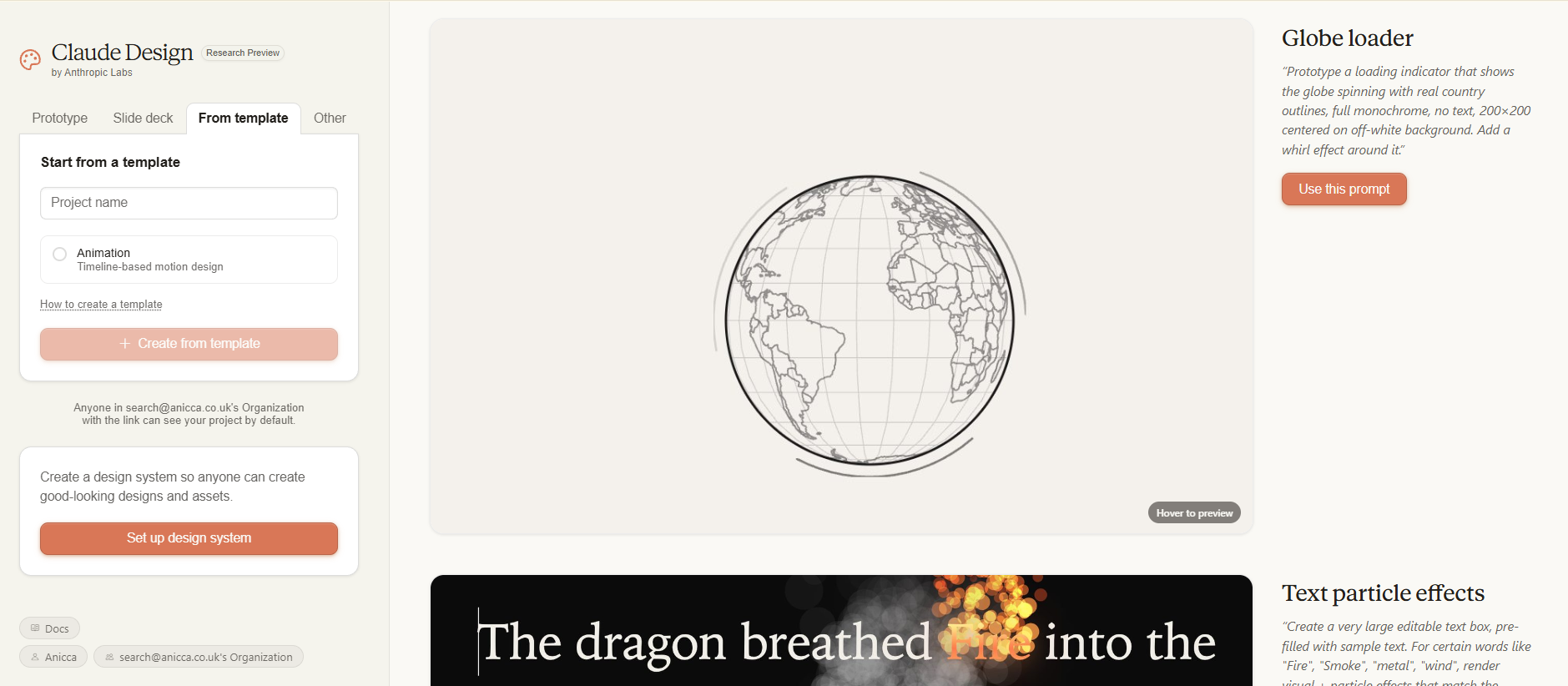
Where tools like Canva give you templates you fill in, and tools like Figma give you a blank canvas you design on, Claude Design sits somewhere in the middle. You brief it once, you get a working first pass, and you iterate in conversation. “Make the headline larger.” “Swap the hero image for a photo of a laptop.” “Try a warmer colour palette.” You stay in text while the visual evolves.
What can you actually do with it?
Anthropic highlights six use cases, and every one of them is directly relevant to a marketing or management team:
- Pitch decks and presentations – go from a rough idea to a polished deck in under an hour. Good for new business pitches, quarterly reviews or internal training sessions.
- Marketing collateral – landing pages, social media assets, one-pagers, email headers. Produced in your brand colours and voice if you brief it properly.
- Product wireframes and mockups – useful if you are scoping a new website, a portal, or a feature for a client and want something visual to hand over to a designer.
- Interactive prototypes from static mockups – take a flat design and turn it into something a client or user can click through. Useful for demos and user testing.
- Design exploration – ask Claude to produce three different directions for the same brief, compare them, and pick the one that works.
- Code-powered prototypes – more advanced, but you can build working demos with voice input, video, and even 3D shaders. Useful for agencies pitching creative work or founders sketching a product idea before anyone leaves the room.
The practical value for us is two-fold. Proposals and pitch decks take less time. And rough visual concepts that used to sit in someone’s head (or on a whiteboard no one photographed) can be turned into something tangible in minutes.
What does this cost?
Nothing extra. Claude Design is included in Pro, Max, Team and Enterprise subscriptions. It uses the same monthly usage limits as the rest of Claude, and optional extra usage is available if you push the ceiling.
One note for Enterprise customers: Claude Design is off by default on Enterprise plans. A workspace admin needs to turn it on in settings before your team can access it. If you cannot see claude.ai/design when you sign in, that is almost certainly why.
A note for existing Claude Code users: you already have powerful visual capability
Before you rush over to claude.ai/design, it is worth saying that Claude Code itself is already very good at producing images, particularly if you give it something to work from. Upload a seed image, a brand photo, an existing logo, a screenshot or a colour palette, and Claude Code will interpret it and produce branded visuals to match. It can output PNG files directly, and it handles brand colours and typography well once you tell it what they are.
My strong recommendation for anything that needs to look pixel-perfect (carousels, web designs, blog headers, social graphics, report covers) is to build it in HTML first and then convert it to PNG. Claude Code is dramatically better at getting things precise in HTML than it is at generating an image from scratch, because HTML lets it place text, boxes, logos and images exactly where they belong, then the conversion to PNG is just a rendering step.
This is how I produce almost all of my visual content: my weekly What a Week LinkedIn carousels, my AI marketing news carousels, the featured images on every blog post, and all of the illustrations and diagrams inside my Claude Code Implementation Guide are built in HTML by Claude Code, exported to PNG, and uploaded to WordPress or LinkedIn. No designer touches any of it. For a marketing team that wants consistent, on-brand visual output without hiring (or waiting for) a designer, this workflow is worth learning in its own right, and Claude Design on top only makes it easier.
Bonus Tip: Managing Multiple Chat Tabs and Projects
If you use Claude Code for anything more than one-off tasks, you quickly end up running several chats at the same time: one for a client audit, one for a blog post, one for a data pull. There are two places this happens, and the tip below covers both.
First, inside Claude Projects (the web and Desktop app). Each project in the left-hand sidebar is a separate workspace with its own files, instructions and chat history, and you can now rename any project by right-clicking its name in the sidebar. One click, type the new name, done. This is the cleanest and fastest way to organise parallel work.
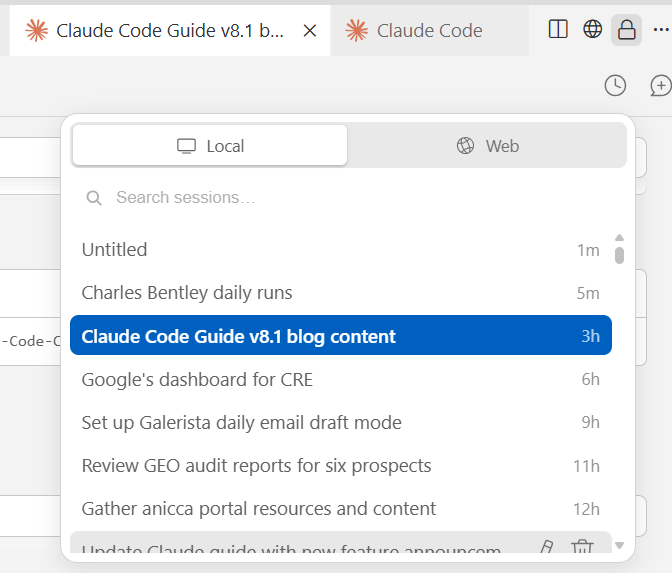
Second, if you are using Claude Code inside Cursor, you can also rename individual past chats within a project. The workflow is more fiddly (you have to dig into the clock icon in the session history to find the edit option), but it is there. I walk through it step by step below, because it was one of Cursor’s main organisational advantages before the Desktop redesign, and it is still useful if you live in Cursor for technical work.
This matters more than it sounds. Every Claude chat has a limited memory (the context window). When you use it up, Claude slows down, starts to get things wrong, or asks you to summarise where you have got to. The usual way around this is to do a handover: open a fresh chat, give Claude a short brief on where you left off, and carry on. If you do this regularly during a working day, you end up with several chats for the same project, all fighting for the same auto-generated title. Being able to rename each one is what turns that from a mess into a clear working log.
Here is how I use it. I start every chat with the day and a version number, for example “Sunday 1”, “Sunday 2”. When I hand over halfway through the day because a chat is nearing its context limit, I rename the current one from “Sunday 1” to “Sunday (1)” and the new one becomes “Sunday 2”, so I can always tell which is the most recent version at a glance. For client work, I put the date at the start of the tag (“19 Apr CRE audit fixes”) so the sidebar becomes a reverse-chronological log of what I worked on and when.
Method 1: Rename a Project in Claude Desktop (the easy way)
In the left-hand sidebar of Claude Desktop, right-click any project name and choose rename. Type the new name, press enter, done. This is a Projects feature, so it works the same in the web app at claude.ai too.
Method 2: Rename a past chat when running Claude Code in Cursor
This one is for users running Claude Code inside Cursor. The rename option is there but buried, so here is the three-step walkthrough.
Step 1. Open a new chat window by clicking the plus button in the top-left corner (or press Ctrl+Shift+P on Windows, Cmd+Shift+P on Mac). Once you are in a chat, click the little clock icon next to it to open your session history.
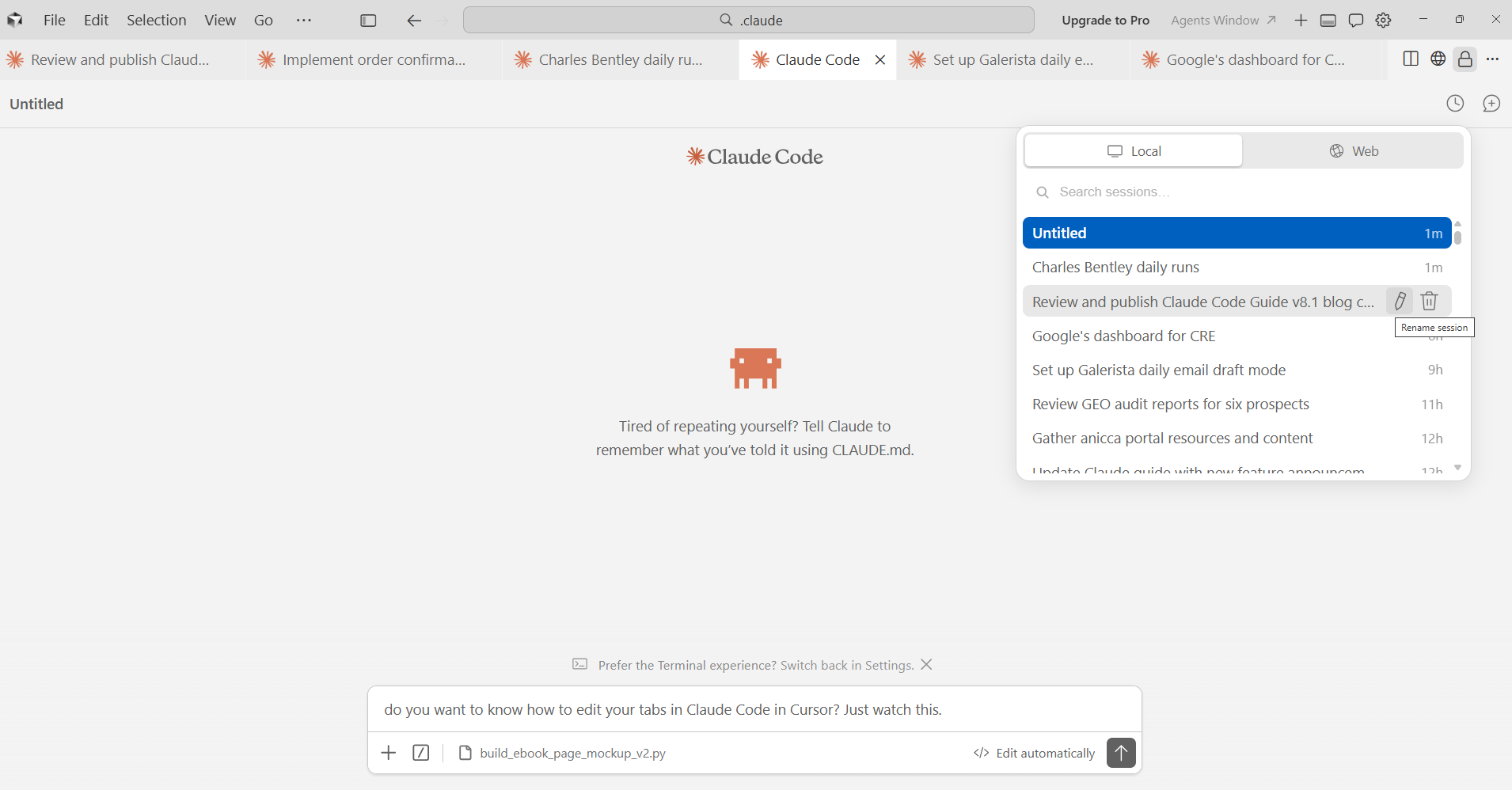
Step 2. In the session list view, each past chat has a small edit icon next to its title. Click it to rename the chat.
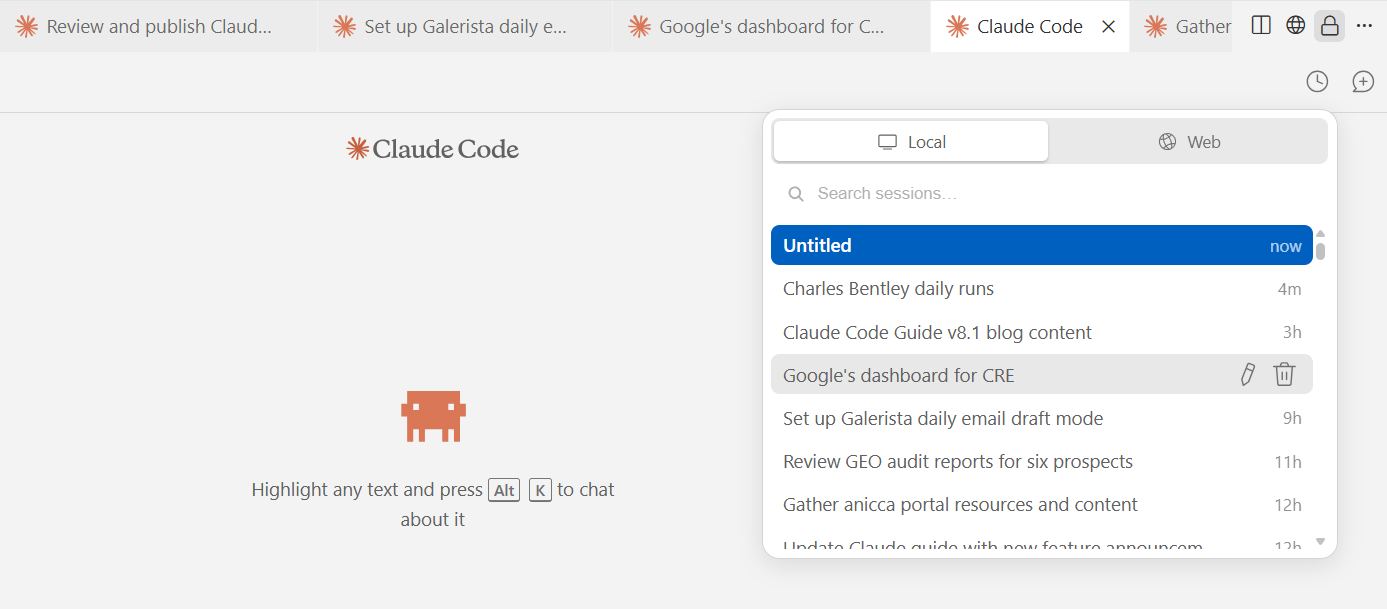
Step 3. Type the new name and save. I use a simple convention of day plus version number, but you can use whatever structure fits the way you work. Project codes, client names, dates, version labels, all of it becomes easier to scan.
Taken together, these two methods cover almost every multi-chat scenario. If you run multiple clients, juggle several projects in a day, or hand work between chats when context windows fill up, they save a surprising amount of time and cognitive load.
What This Means for Your Team
These two updates together solve the “how do we actually roll out AI to the team” problem more cleanly than anything Anthropic has shipped before. Here is what changes in practical terms:
- New starters get productive in 15 minutes. Install Claude Desktop, sign in, point it at a folder. No code editor, no extensions, no support tickets about the wrong AI tab.
- Scheduled work stops breaking. Move your daily reporting, content pipelines, and data pulls to Routines. Nobody’s laptop needs to stay on overnight.
- Parallel workflows become normal. A PPC manager can have one session drafting ads for one client and another running a competitor audit for a second client, all in the same Desktop window.
- Voice input is free. Claude Desktop has voice input built in across both Cowork and Code modes. Previously, anyone using Cursor or VS Code needed Wispr Flow (around £6-£10 per month per user) for voice-to-text. For a 20-person team, Desktop-first training saves roughly £1500-£2500 a year on voice tool subscriptions alone.
- Remote steering still works. Combined with Channels (which shipped in March), you can brief a Routine from your phone, check progress from Telegram during a meeting, and review the finished output back at your desk.
- Visual work gets dramatically faster. With Claude Design, rough pitch decks, landing page mockups, and social assets that used to take a designer a day can be drafted in minutes. The finished quality is not a substitute for a professional designer on a brand campaign, but for proposals, internal decks, and early-stage prototypes, it removes a real bottleneck.
If you want to go deeper, we have written a free Claude Code Implementation Guide that walks you through setting up Claude Desktop, building your first skills (a skill is a reusable set of instructions that tells Claude how to do a specific task, like generating a report or formatting a blog post – think of skills as recipes that Claude follows), and rolling it out to a team. It has just been updated with Desktop-first onboarding, reflecting everything in this article. The guide also includes a full glossary of every technical term you are likely to encounter.
The Training Decision Just Got Easier
If you are a managing director or operations manager who wants to get your team trained up in Claude Code, the Desktop redesign has just made that decision much simpler. Up until this week, the best way to train your team in Claude Code’s agentic features was to use it inside the Cursor IDE, which meant they first had to learn Cursor itself (its layout, menus and keyboard shortcuts) before they could even start on the Claude Code bits. That is no longer necessary. Claude Desktop now delivers the same Claude Code capability in a familiar, marketer-friendly app, so you can train your team on Claude Code directly without the extra overhead of a code editor.
For most of your team: Default to Claude Desktop. The engine is identical, the skills you build work in both, and the learning curve is dramatically shorter. Onboarding takes 15 minutes instead of an hour. You are teaching an application, not a collection of developer tools.
For two or three power users: Keep the Cursor or VS Code setup. There are three things that Desktop cannot do yet that an IDE can:
- Hooks – automated behaviours that trigger when specific events happen. For example, you could set up a hook that runs a quality check every time Claude edits a file, or one that formats your code automatically before saving. Think of hooks as “if this happens, then do that” rules.
- Headless mode – running Claude from a script without any visible window. This is how you connect Claude Code into other automated systems, like running it as part of a nightly build process or triggering it from a GitHub action (an automated workflow that runs when code changes).
- Agent SDK – a toolkit for building custom AI agents programmatically. If your developers want to build their own AI-powered tools on top of Claude, this is how they do it.
These are genuinely useful capabilities for technical staff, but they are not what most of your team needs day to day.
The economics reinforce this. Cursor itself is free, but the adjacent tooling is not. Wispr Flow for voice input runs £6-£10 per user per month. For a 20-person team, that is £1400-£2400 a year in voice subscriptions alone. Claude Desktop has voice input built in at no extra cost, across both Cowork and Code modes. Add the reduced support burden, the shorter onboarding, and the fact that most marketers will never need a code editor, and the case for Desktop-first training becomes hard to argue with.
The real barrier to AI adoption in agencies is not the technology. It is the training bottleneck. Every hour your team spends learning how Cursor works is an hour they are not producing client work. The Desktop redesign lets you skip all of that. Point staff at a folder, hand them a skill library, and get out of the way.
Key Takeaways
- The Desktop redesign gives you three modes: Chat (quick questions), Cowork (real work with voice and file access), and Code (power users). You switch between them with one click in the top-left corner. This is the most significant of the four updates because it removes the code-editor barrier for non-technical staff.
- For most marketing and management staff, Claude Desktop is now a better starting point than Cursor. Cursor remains the right choice only for users who need hooks, headless mode, or the Agent SDK.
- Both Cowork and Code modes inside Claude Desktop have voice input built in, so a 20-person team switching from Cursor to Desktop saves roughly £1500-£2500 a year on Wispr Flow subscriptions.
- Routines are scheduled tasks that run on Anthropic’s servers, not your laptop. Your machine can be off and the work still happens. The one caveat: Routines cannot access local files, so pipelines that read from your local disk need to be redesigned around cloud-accessible sources before you can migrate them.
- Opus 4.7 (16 April) follows instructions more precisely, reads images at 3.3 times higher resolution, checks its own work on long tasks, and hallucinates less. Same price as 4.6, nothing to install.
- Claude Design (17 April) is a new visual workspace at claude.ai/design that produces slides, mockups, pitch decks, landing pages, and interactive prototypes from plain English briefs. Included in Pro, Max, Team and Enterprise plans. Off by default on Enterprise until an admin enables it.
- Our Claude Code Implementation Guide has been updated with Desktop-first onboarding.
Frequently Asked Questions
I’m a beginner. Do I need to worry about Cursor, or do I just go to Desktop?
Just go to Desktop. For most marketers and managers, Claude Desktop is now everything you need. It has the three modes (Chat, Cowork, Code), voice input built in, and parallel sessions so you can run multiple tasks at once. It feels like a normal application. You sign in, point it at a folder, and start working. Cursor is a code editor designed for developers. If you are not already writing code, you will not miss anything by skipping it.
I’ve already got Cursor. What do I do?
Decide based on how you actually use Claude Code, and avoid running both side by side. Splitting your work across two environments means files end up in different places, you keep paying for Wispr Flow, and you never fully commit to either workflow.
If you only use Claude Code for everyday work (writing, reports, data pulls, content, client deliverables), switch to Claude Desktop and close Cursor. You get the same Claude Code engine, voice input built in across Cowork and Code modes, and no code editor to maintain. Your skills, CLAUDE.md files (the instruction files that tell Claude how to work with your projects), project folders, and credentials all transfer automatically because they live in folders Desktop reads directly. You can cancel Wispr Flow (roughly £6-£10 per user per month) since you will not need it any more.
If you actually use the advanced features (hooks, headless mode, the Agent SDK, custom MCP server configs), stay in Cursor. Those things are not yet available in Desktop, and switching will cost you capability you rely on. Keep Wispr Flow, which you are probably using elsewhere anyway, and carry on. You can always migrate later when Desktop catches up.
What does the Desktop redesign cost?
Nothing extra. It is rolling out to all existing Pro, Max, Team, Enterprise, and API plans at no additional charge. Routines are also included, though they do use tokens when they execute, so a Routine that runs hourly will add to your monthly usage.
How do Routines compare to Windows Task Scheduler?
Task Scheduler runs on your machine. If your laptop is off, asleep, or being updated, the task does not run. Routines run on Anthropic’s servers, so they work regardless of what your laptop is doing. The trade-off is that Routines cannot see your local files. If your workflow reads from a spreadsheet on your desktop, you need Task Scheduler. If it pulls data from an API or a cloud service, Routines are better.
Where can I get the full setup guide?
Our Claude Code Implementation Guide is a complete 65-page strategy document for adopting Claude Code in a marketing team, agency or business. It is free. The guide is structured around seven chapters:
- Chapter 1: Why Claude Code Matters Now – the adoption gap, the AI adoption ladder, workflows vs AI agents, how humans and AI work together, who should implement first.
- Chapter 2: Understanding Claude Code – the evolution from Projects to Claude Code, Claude Desktop, Claude in Cursor / VS Code, choosing your setup, the innovation edge.
- Chapter 3: Getting Set Up – Day 1 setup, safety, software tools and costs, Cursor and VS Code setup.
- Chapter 4: How to Work with Claude – the seven core concepts, how to talk to Claude, brand voice, controlling thinking depth, your CLAUDE.md “brand bible”, memory and handovers, session management.
- Chapter 5: Skills – what a skill is, the seven levels of skill building, building your first skill, the skill creator, reproducible intelligence, the HTML-first workflow, QC and critique, a first-week plan.
- Chapter 6: Business Use Cases and Outputs – the benefits framework, the full department map, real examples across marketing, documents, sales, research, finance, web apps, portals, dashboards, APIs, MCP, and credentials.
- Chapter 7: Implementation and Governance – crawl/walk/run, costs, first-month health check, ambassadors and adoption styles, getting your team on board, sharing what Claude builds, governance, running an AI discovery session, the C10 AI Adoption Framework.
Plus a glossary of every technical term and two practical appendices (Permissions Setup and What to Say to Claude). It is the kind of document you work through a chapter at a time, so most people either read it cover to cover over a couple of sittings or jump straight to the chapter they need.
Need help rolling out Claude Code to your team? Contact the Anicca team for a walkthrough.

The Thursday AI Club
A hands-on AI club for marketers and managers. Fortnightly, 2-5pm. Led by Ann Stanley, Darren Wynn, and James Allen.
How each session works
Hour 1: Open Q&A – Bring any question about AI, however basic or technical. Practical answers from the team.
Hours 2-3, Track A: Workshop – Hands-on sessions where you build as you go. Prompt engineering, AI agents, Claude Code, vibe coding, and more.
Hours 2-3, Track B: Advanced – For experienced users who want individual questions answered, live software demos, and AI in action. Separate breakout for deeper work.
Members get
Two workshops or drop-in sessions per month, access to the training portal with recordings and downloadable resources, membership of the Secret Agents community, plus a full-day hackathon every quarter.
Membership: £40+VAT/month or £400+VAT/year
This article is based on features shipped by Anthropic in April 2026. We use Claude Code daily at Anicca Digital and have tested these updates in our own workflows. If anything has changed since publication, please let us know.


Thursday AI Club
A hands-on AI club for marketers and managers. Fortnightly 3-hour sessions: Hour 1 is an open Q&A on any AI question; Hours 2-3 split into a workshop track (for newbies) and an advanced track (live demos and deeper questions).
Led by Ann Stanley, James Allen.
Membership: £40/month or £400/year
Join the Thursday AI Club →